Step 1
Open the dashboard setup checklist
After signup, head to the dashboard to see the required setup items.
Complete the checklist first so the experiences know what to show and say.
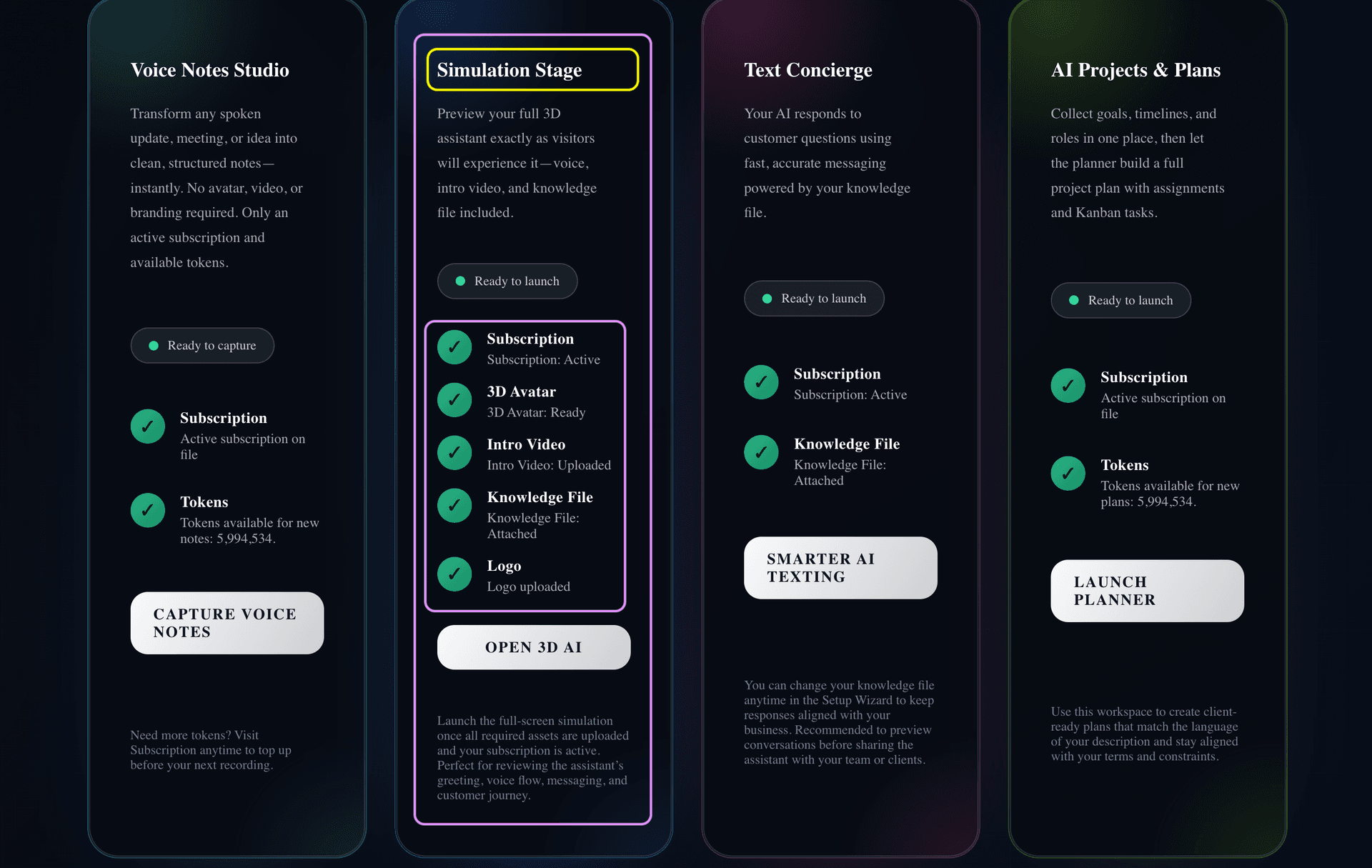
Follow this simple checklist so every Awsy-AI experience uses the right files. Upload your knowledge file, logo, and greeting video before launching the 3D AI or Text Concierge.
Step 1
After signup, head to the dashboard to see the required setup items.
Complete the checklist first so the experiences know what to show and say.
Step 2
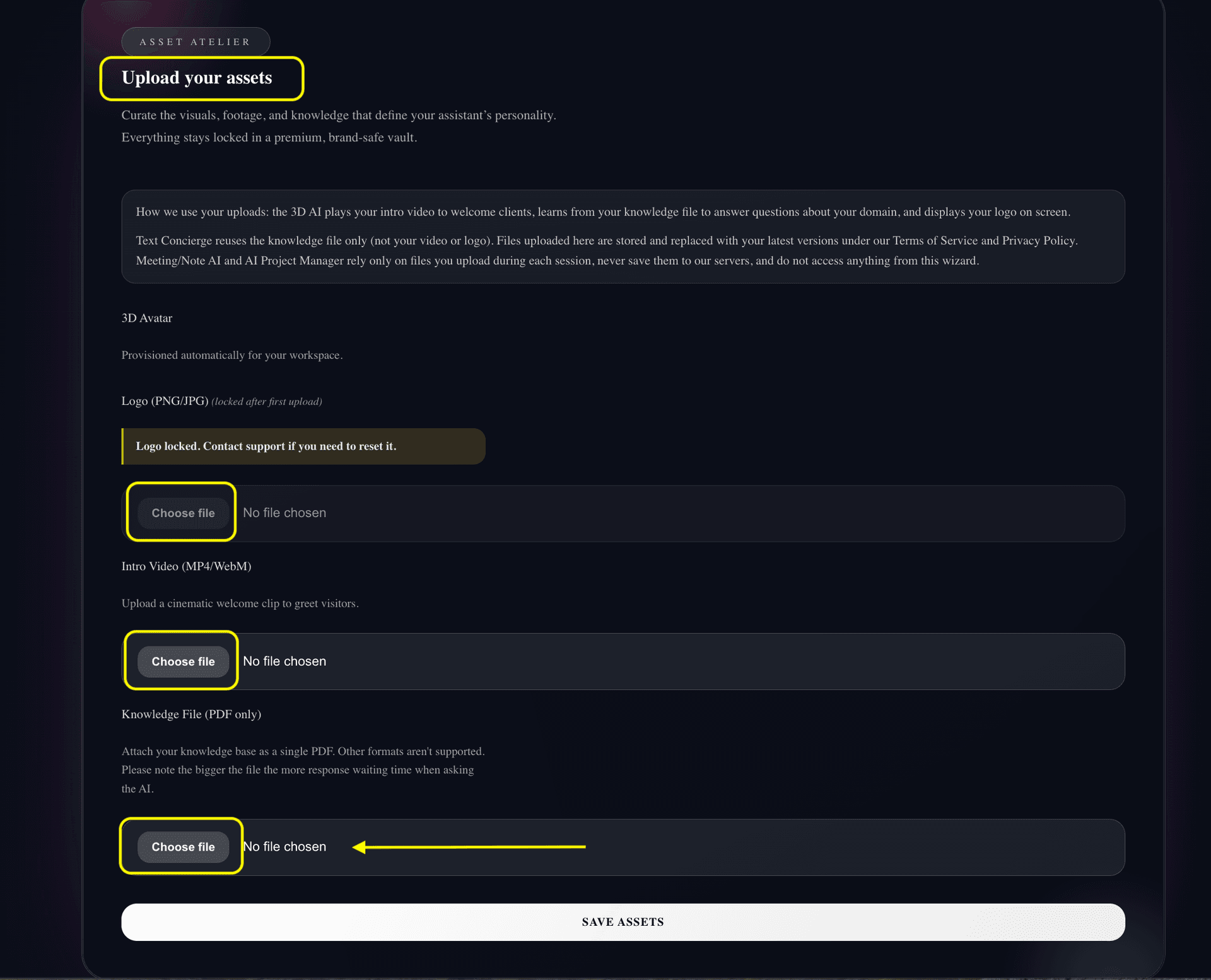
Upload one file that explains your business: services, pricing, policies, and FAQs.
This file powers the 3D AI presenter and the Text Concierge, so upload it before testing either experience.
Step 3
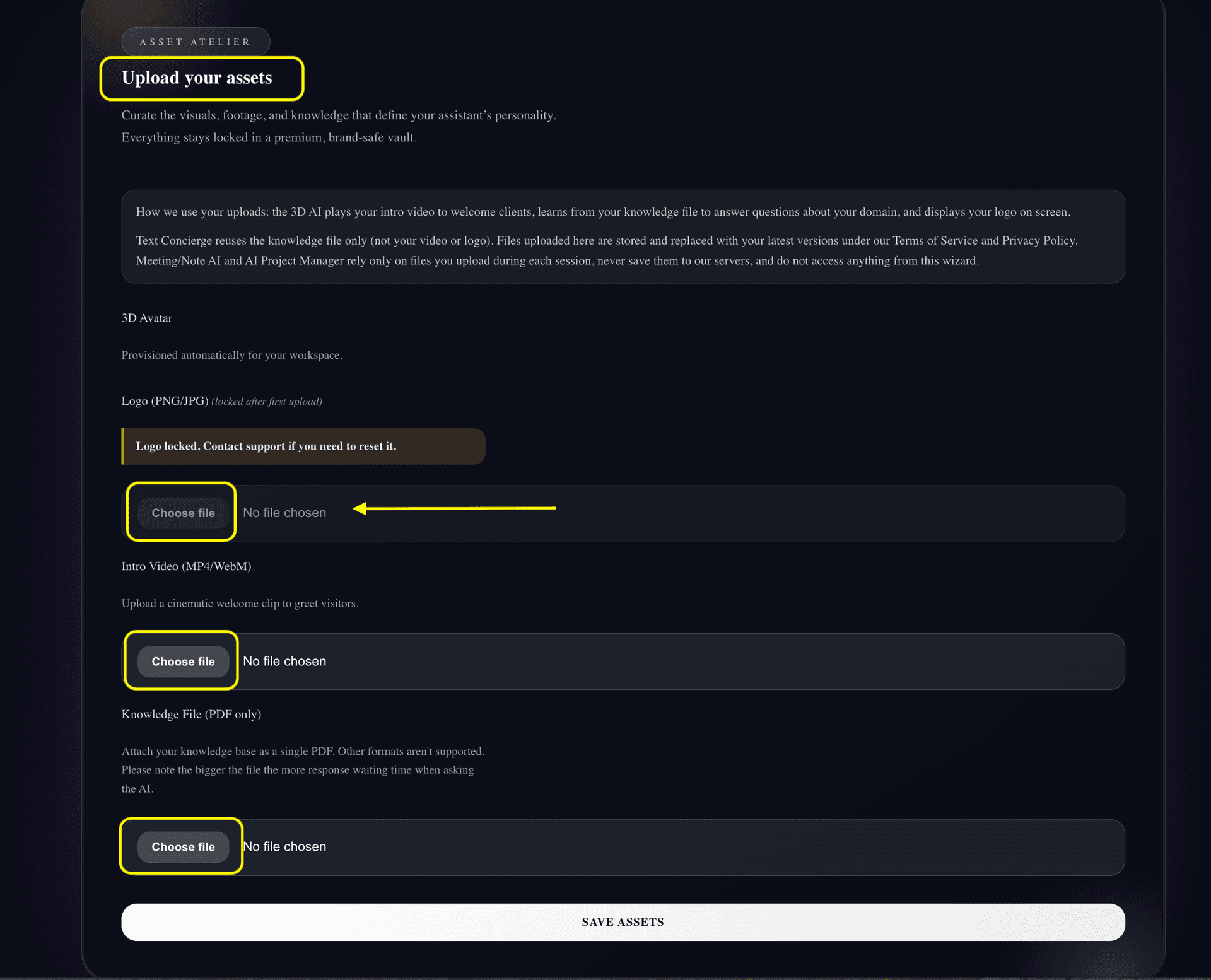
Upload your logo so the widget, dashboards, and AI experiences show your brand.
Confirm your company name, colors, and contact info if available.
Step 4
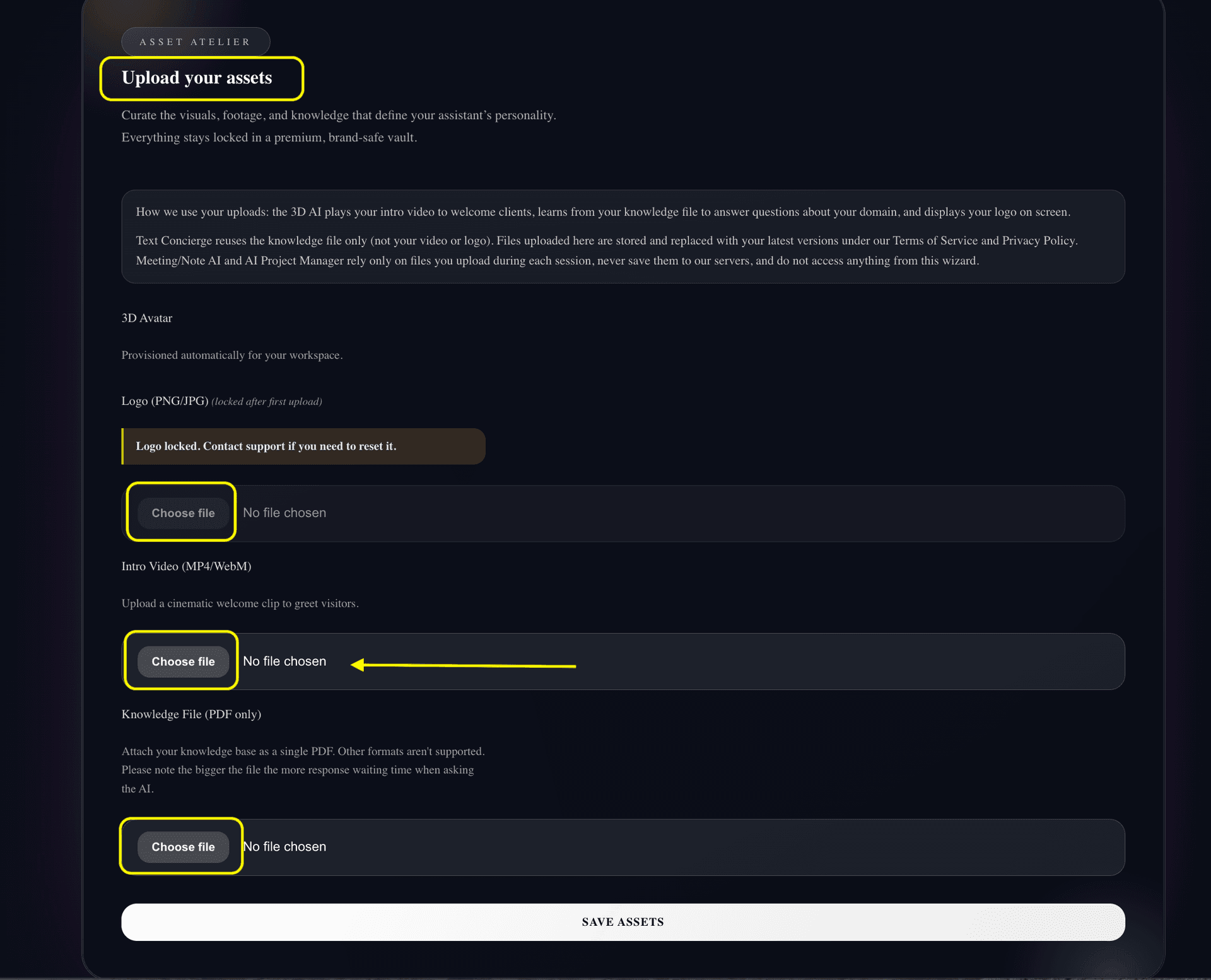
Add your greeting video to welcome visitors.
Your 3D avatar is already prepared and ready to go.
This video appears in the 3D AI experience and sets the tone for visitors.
Step 5
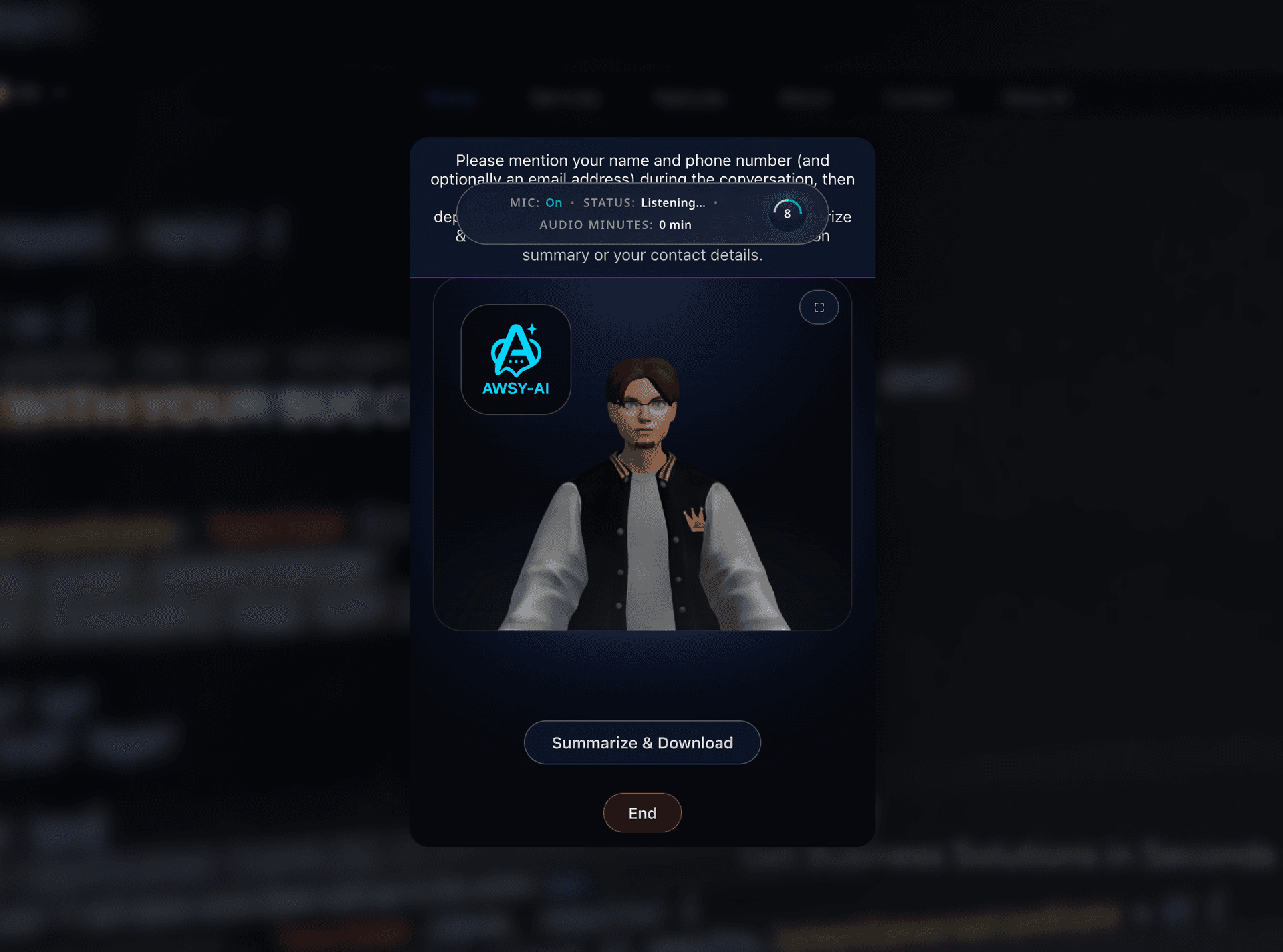
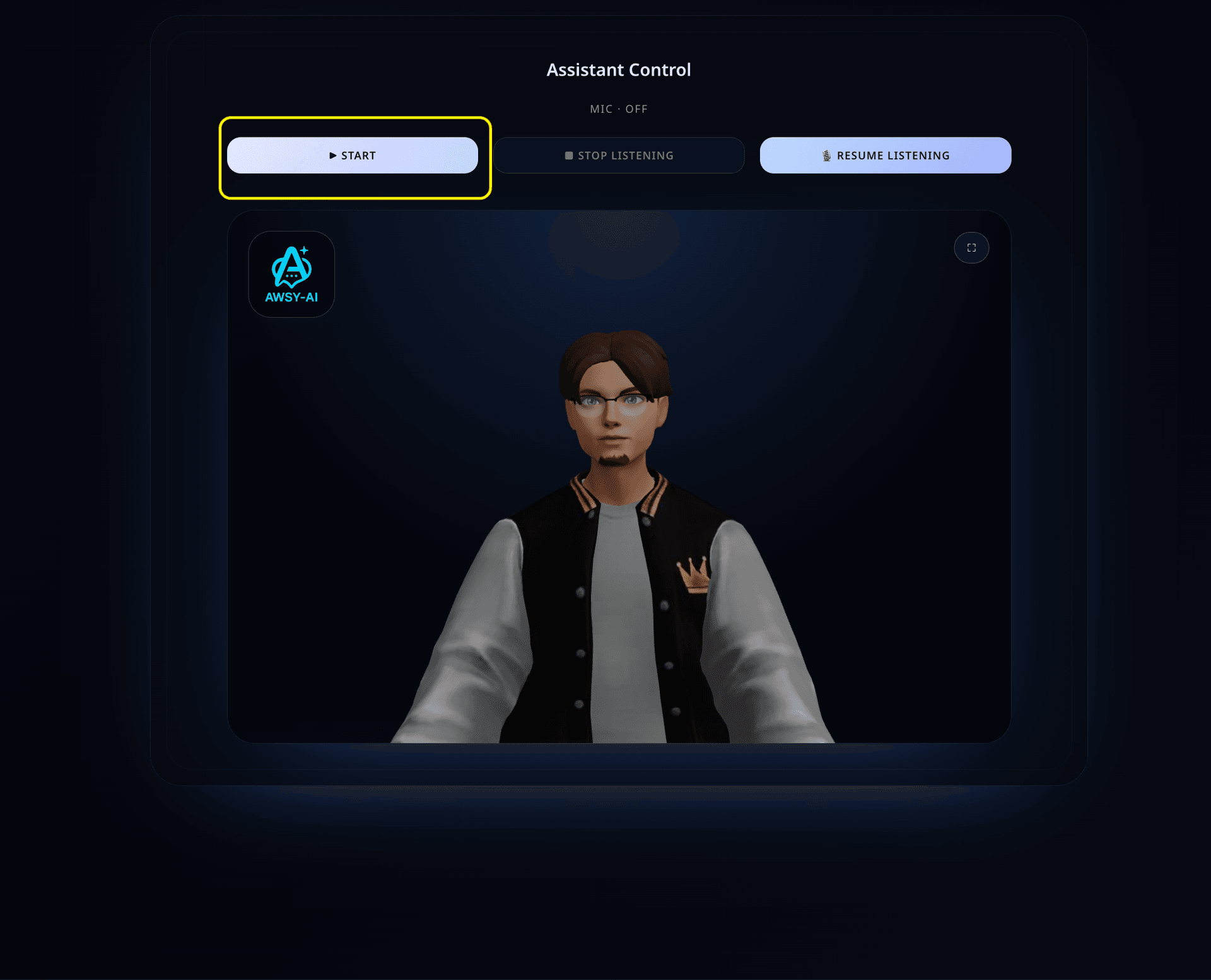
Go to Experience → 3D AI and start a session.
The presenter will answer questions using the knowledge file you uploaded.
Use it directly inside the Awsy-AI platform or embed it on your website or web app.
The avatar automatically speaks the visitor’s language and supports 80+ languages.
Step 6
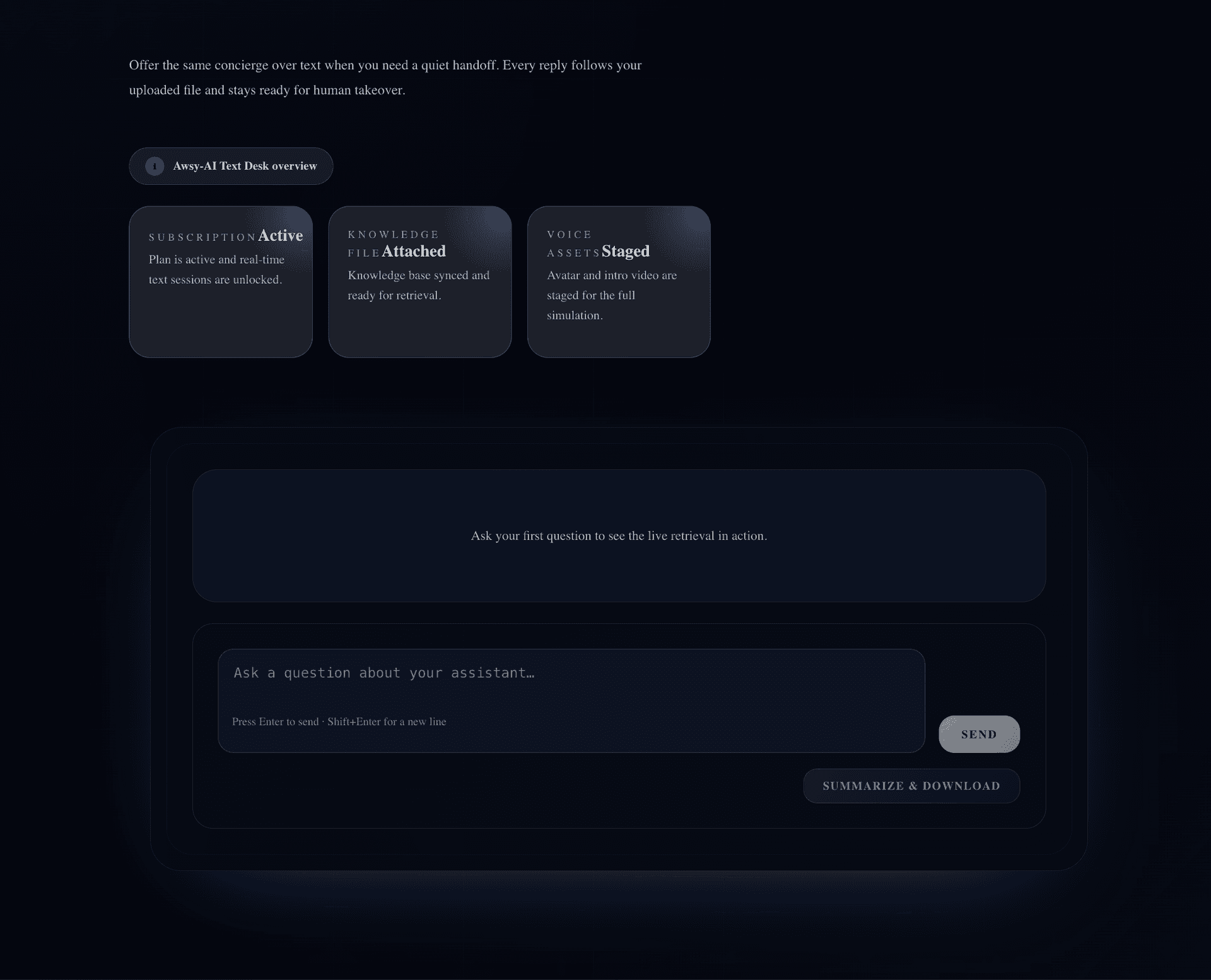
Open Experience → Text Concierge to chat with visitors or team members.
Text answers come from the same file, so keep that file current.
Use it directly inside the Awsy-AI platform or embed it on your website or web app.
Texting automatically answers in the visitor’s language and supports 80+ languages.
Step 7
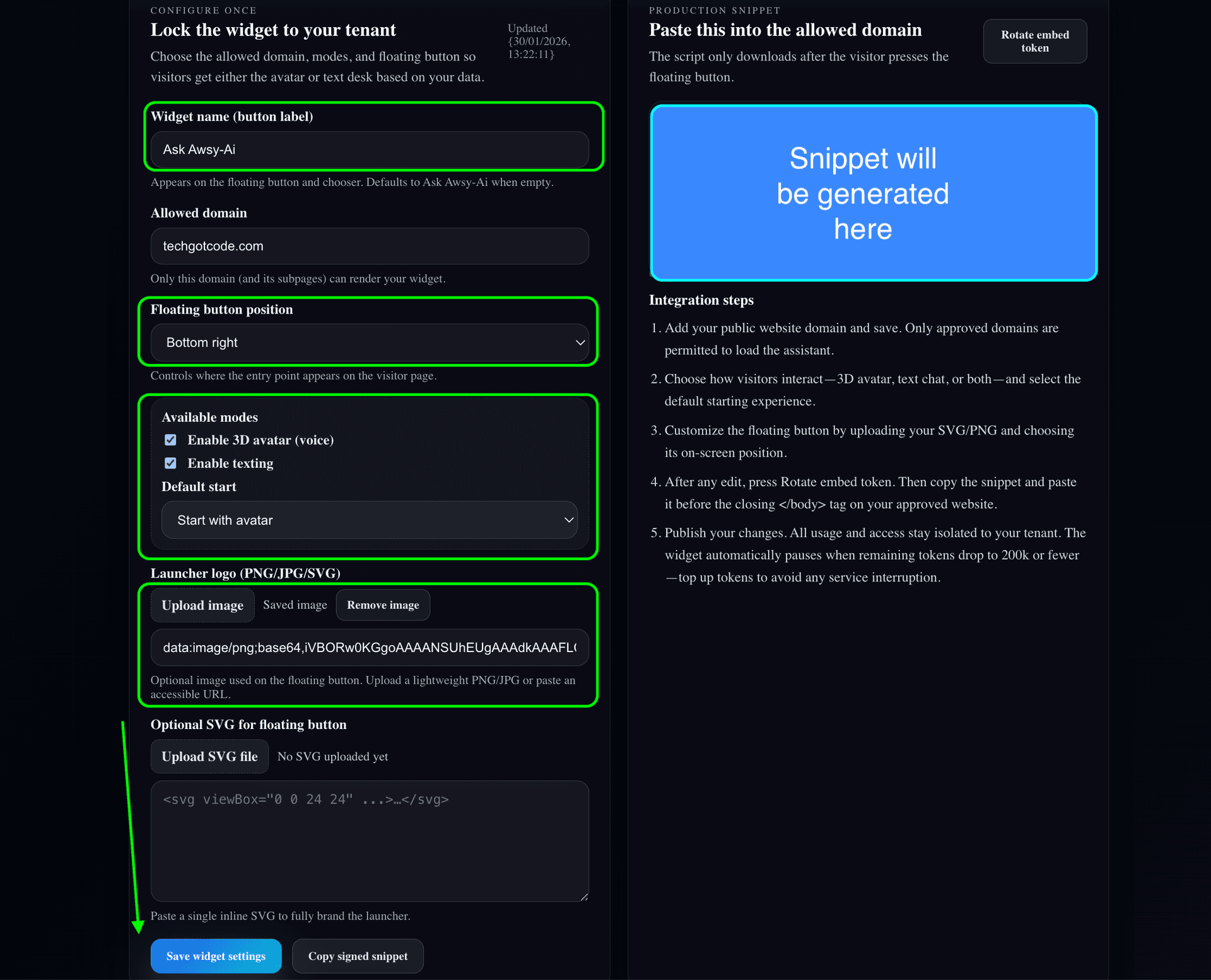
Go to Experience → Widget and create your widget settings.
Add your allowed domain, copy the embed snippet, and paste it before the closing </body> tag on your site.
When visitors share their details and accept, the lead appears in your dashboard so your team can contact them.
Step 8
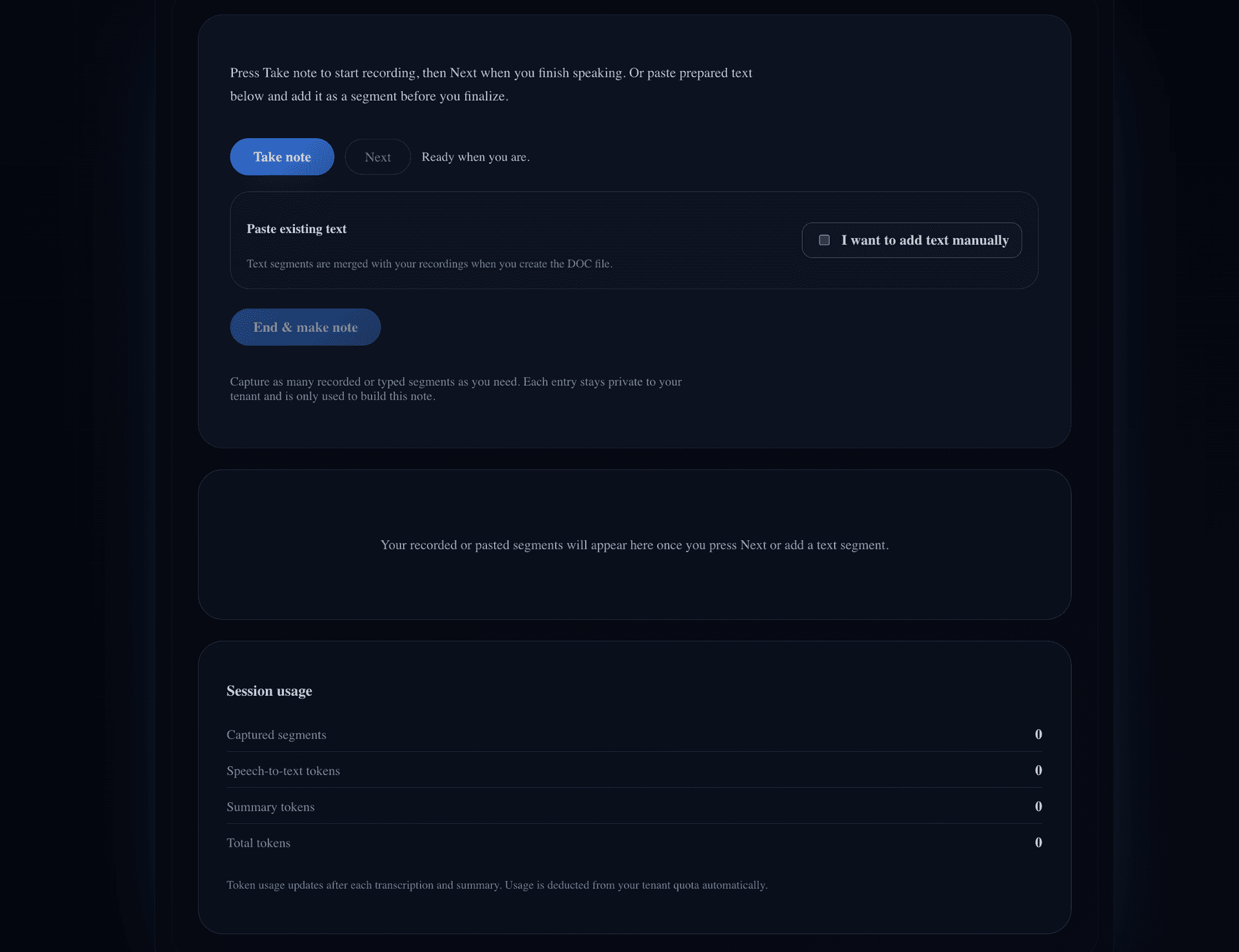
Notes AI does not require any setup. Just upload meetings or voice memos when you need a summary.
Choose a summary style and download the formatted document.
Step 9
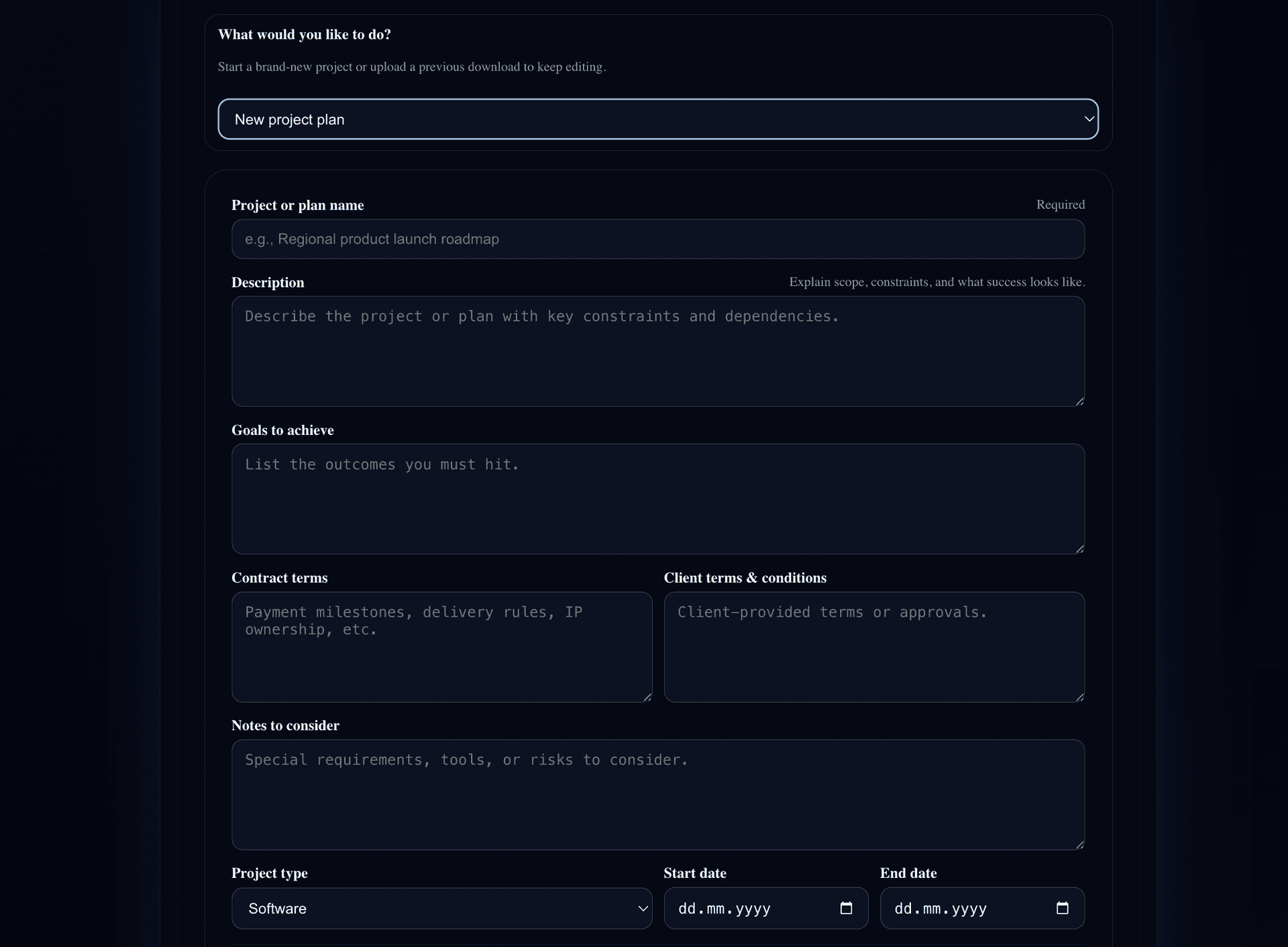
AI Project Manager does not require any setup. Upload a project brief or scope when you're ready.
The planner will generate tasks, milestones, and a Kanban board.
Step 10
Once the file, logo, and video are in place, you are ready to invite real visitors.
Update your knowledge file anytime—every experience refreshes automatically.